
Augustana Copy Center
Located on the ground floor of Sorensen Hall, the Copy Center offers students, faculty and staff a variety of printing and copying services, from simple flyers to full-color bound books.
Contact: 309-794-7301 or copycenter@augustana.edu
Hours: Monday-Friday 8 a.m.-3:30 p.m.
Procedures for printing and copying requests
Email a print-ready PDF to copycenter@augustana.edu formatted to the desired print size, or bring an original document directly to the Copy Center.
The Copy Center does not edit images. Projects should be brought in ready to print and in the correct size.
Specify the weight of paper if it is anything other than #20 copy paper.
If the print job is a book, leave the pages in order. The Copy Center will arrange them for printing.
Clients who are familiar with layout techniques may add cut marks, or the Copy Center can cut to bleed.
Clients should provide a form of payment, such as a departmental budget account number, cash, check or charge paper account. The Copy Center must have a departmental account number before jobs can begin.
Depending on the size of the project, allow 48 hours for the request to be done.
The Copy Center will email the client when the order is finished.
Frequently asked questions
How do I resize a pdf?
If your PDF is the incorrect size for print, go back to the software you used to create it, adjust the dimensions and save a new PDF. If you don’t have access to the software it was created in, try these methods to resize:
- Use Adobe Acrobat (Pro or Reader)
- Open your PDF and navigate to File > Print, to open the print window
- Set the printer to Adobe PDF or Microsoft Print to PDF
- Under Page Sizing & Handling choose:
- Fit: Scales pages up or down to fit the paper
- Custom Scale: Enter an exact percentage to magnify or reduce the content
- For Custom page dimensions, click Properties > Advanced > Paper Size > PostScript Custom Page Size to type in a new width and height values. Then proceed to save a new PDF using the print window.
- Use Mac Preview
- Open the PDF in the Preview app on Mac
- Click the Show Markup toolbar icon, then select Adjust Size.
- Type in new width and height values or choose a scale percentage
- Save the file
- Use Microsoft Word (Windows/Mac)
- Open Microsoft Word and go to File > Open to select your PDF (Word will convert it for editing). Look over your content to make sure nothing got lost or shifted around in the conversion process.
- Navigate to the Layout tab and click Size in the Page Setup group.
- Select a preset or click More Paper Sizes to type in custom dimensions.
- Go to File > Save As and choose PDF as the format
How do I turn a file into a pdf?
- From Google Docs
- File > Download > PDF Document (.pdf)
- From Microsoft Word
- File > Save As > PDF
- From Canva
- Share > Download > PDF (Print) > Download
- Adobe Illustrator
- File > Save As/Save a Copy/Export > Adobe PDF (pdf)
- Adobe InDesign
- File > Export > Adobe PDF (Print)
- Don’t have the program the file was made in?
- Open the document, image, or file you want to convert.
- File > Print
- Look for the Printer dropdown menu.
- Select Microsoft Print to PDF (Windows), Save as PDF (Mac/Chrome), or PDF.
- Click Print or Save, choose your destination folder, and name your file
How do I merge files (pdf or not) into one pdf?
Use the Adobe Acrobat Online Merge PDF Tool or the Adobe Acrobat Desktop App:
All Tool > Combine Files > Select Files > Combine files and download a PDF
Products and services
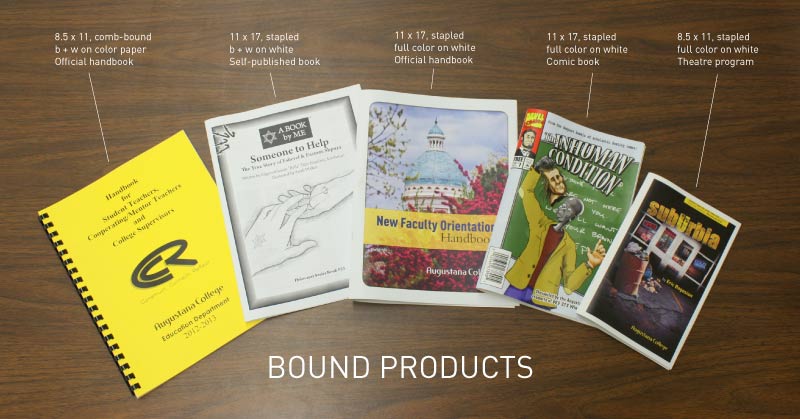
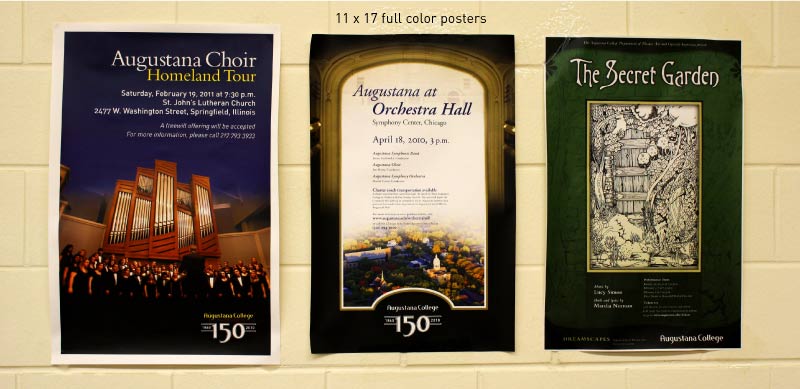
Copying and printing in black and white or full-color on the following sizes of paper:
- 8.5" x 11" letter
- 8.5" x 14" legal
- 11" x 17" poster
- 12" x 18" poster
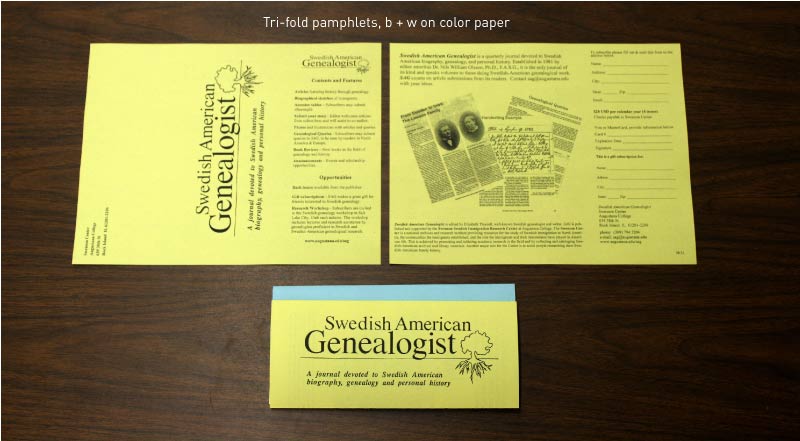
- Folding — e.g. tri-fold pamphlets
- Binding — with plastic combs or staples
- Cutting — fast bulk cutting into smaller sizes
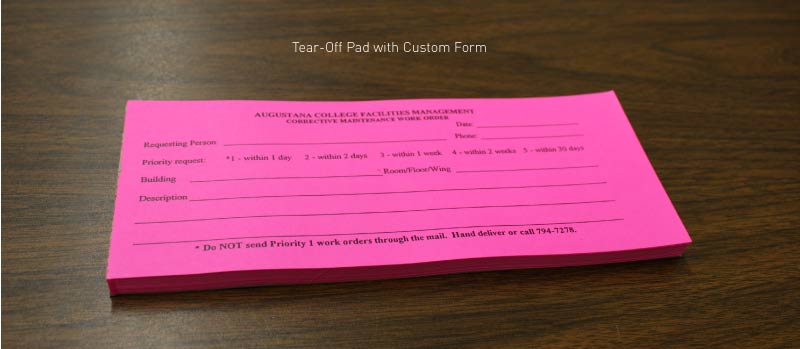
- Padding — creating custom tear-off pads out of scrap paper or a custom design
Related services
- Folding: For tri-fold pamphlets and books.
- Stapling: Documents can be corner-stapled, or center-stapled and folded.
- Binding: Plastic comb binding (this is the labor cost).
- Padding: Tear-off pads made from scrap paper or custom design.
- 3-hole punch: Standard 3-hole punch for binders.
- Brads: 1" brads, brass.
- Cutting: For instance, to cut an 11 x 17 sheet into two 8.5 x 11 sheets.
- Plastic combs: The standard comb fits 100 pages. Larger combs up to 425 pages are available.
Intellectual property
The Copy Center respects the intellectual property rights of content creators, and will only make copies of materials for which the client holds the copyright, materials clearly in the public domain, or if the client has properly secured the right to make copies from the copyright owner(s).
Instructors who are assembling comb-bound course packs with materials from multiple sources should contact the Bookstore manager, 309-794-7541, to secure the necessary permissions with the publishers.
For those unfamiliar with copyright laws, Wikipedia has a basic entry on copyright.